Sync thunderbird profiles and mail accounts between computers
Tips & Tricks, Technology August 5th, 2007
While I am preparing my backpack travel to China for 2007, I decided to carry one of my older and lighter compaq laptop with me. So I can backup and load pictures to my online photogallery whenever I can. I also want to check email with my favorite email program “Mozilla Thunderbird.” I have seen people share thunderbird profiles between a dual boot computer system between Linux and windows XP. That gave me the idea that I can easily transfer all my thunderbird profile and emails between computers.
This is how-to!
Basically, the idea is to transfer all profile and email accounts from one computers to the other. Thunderbird store all profile information and emails at special location. No system registry are used, which is great! With Microsoft outlook or outlook express, there is no way you do so easily.
My goal is to transfer the profile and email account between two Windows XP laptop. So I first make sure both laptop have the same version of thunderbird installed. In normal case, the thunderbird profile are stored under the hidden “Application Data” folder.
STEP 1: Locate your thunderbird profile
C:\Documents and Settings\[USERNAME]\Application Data\Thunderbird\Profiles
In my case, my default thunderbird profile are located under:
C:\Documents and Settings\[USERNAME]\Application Data\Thunderbird\Profiles\azzhzgz9.default
STEP 2: Move your default profile
I don’t really like it. I want to move it to the following location on my D: drive (data partition). So I copy the entire content under azzhzgz9.default to the following new location. Remember to close thunderbird before copying the profile.
D:\terencechang\thunderbird_profiles\terencechang
I will also have my email account stored under D drive, which I store all my email accounts when I setup the thunderbird.
D:\terencechang\thunderbird
STEP 3: Create a new profile to use the new directory
To create a new profile, you have to manually create the thunderbird profile by running the profile manager command. Open the start menu and go to RUN. Type in thunderbird -profilemanager
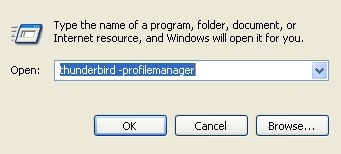
It will open the thunderbird profile manager program. By default, you will see only one profile “default.”
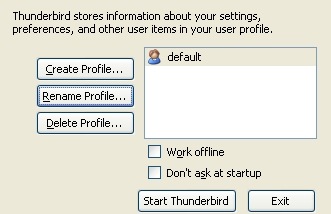
Click on Create profile and type in your profile name. In my case, I use “terencechang” for the new profile name. I also choose the folder where I just copied the default profile to.
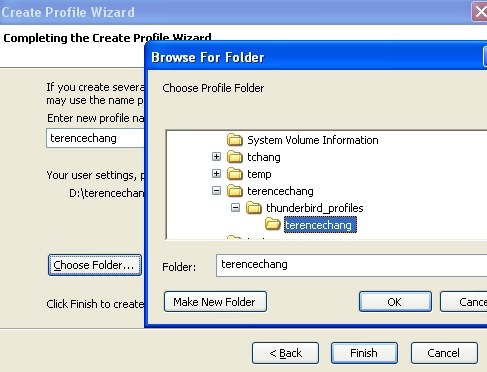
Press OK and save. And click finish to complete. Now you can see two profiles listed.
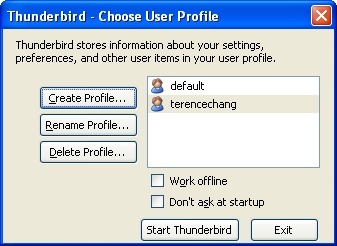
STEP 4: Delete the original profile
Click on “default” and click on Delete Profile to remove the default one. It will prompt you to delete the file or don’t delete the file. I recommend not to delete the file. So you can still have the original copy in place.

Click on “don’t Delete Files” and back to the profile manager screen. You should only see your new profile listed. Click on “Start ThunderBird” to start thunderbird. It it works OK! You are ready to copy profile over to the other computer.
STEP 5: Create new profile on second computer
Repeat STEP 1 to 4 to create the new profile and email storage folders on the other computer you will use to check email.
STEP 6: Copy files
Make sure you copy all profiles and email accounts to the same directory structure on the second computer.
STEP 7: Start your thunderbird and make sure it works
You should have your thunderbird profile and email account transferred to the second computer.
Remember to backup all your files first.
Popularity: 100% [?]
Save To Del.icio.us | Digg This | Stumble It
51 Responses to “Sync thunderbird profiles and mail accounts between computers”
Leave a Comment
Comment PolicyA comment will be DELETED/MODIFIED if:
- Contains links to splogs or MFA (Made For Adsense) sites
- Contains links to a non-blog related sites
- Contains racists, drugs or illegal statements and stuff like that
- Adds no value to the discussion


August 5th, 2007 at 5:49 pm
Thanks for the details, I’m going to go set this up now
August 5th, 2007 at 5:52 pm
@Tyler:
Thank you for stopping by. It’s work very well for me. I don’t even need to re-download all of the extensions. It’s already in the profile. That’s great!
August 6th, 2007 at 9:30 am
[…] for ThunderBird : Terence Chang has given good description including images on how to Sync ThunderBird Profiles between two computers. This will also move the plug-ins which you may have installed in ThunderBird. So, you don’t have […]
August 7th, 2007 at 3:31 am
Instead of creating new profile you can just replace the files in new thunderbird and use the default profile
August 7th, 2007 at 11:16 am
@deePak:
I thought about that. However, on my secondary laptop, I do already used the default profile. So I have to create a new one and make sure I don’t overwrite it. I think it’s a good practice to create individual profile for each family members, in case the computer is shared.
Anyway, thank you for stopping by!
August 14th, 2007 at 1:46 pm
Interesting idea but how do the two versions of thunderbird synchronize with each other?
Also your instructions to delete the default profile seem a bit confusing. You recommend to ‘not delete’ the profile, then you say click on ‘don’t delete files’ and ‘..you should see only the new profile listed.’
August 14th, 2007 at 6:17 pm
@nemrut:
you simply copy the profile and the email files between two computers. There are two delete options, one is to just remove the profile from the profile list and the other one is to delete the profile entirely from the hard drive. I recommend not to delete the files from the hard drive. So you can rollback to the original profile, if you need to.
August 20th, 2007 at 1:41 am
I use the PortableApps version of Thunderbird. I put it in a folder that’s easily accessible (not in program files). Everything is stored in that one folder - nothing goes into documents and settings. I have a copy of that folder on my PC and on my USB drive. Then I use a program called syncback to synchronize the two folders.
Before I go to work, I run syncback and it copies the changed files to my USB drive (takes 30 seconds). I use Thunderbird from the USB drive at work, go home, then run syncback again, copying the changed files from the USB drive to my PC. That’s all! Easy.
August 21st, 2007 at 6:50 am
@Stephen:
That sounds a very good idea. I have heard about the portable application for Firefox and thunderbird. I will check it out when I come back.
September 21st, 2007 at 2:44 pm
how do I import the profile default folder from a my xp laptop to my vista laptop? The thunderbird -profilemanager dose not work on vista’s run command. I Copied the Profile Default folder.. but can’t seem to copy it to my vista laptop.. Please Help
September 23rd, 2007 at 5:41 am
@Will:
Sorry. I don’t use Vista, so I don’t know how Vista stored the default profile. You can search the thunderbird forum. There should be some answer about this. Good luck!
January 16th, 2008 at 11:54 pm
This also works copying to or from Debian Icedove — Icedove is merely a rebranded Thunderbird, even between Windows and Linux clients. The path to the main profile directory in Linux Thunderbird/Icedove is “~/.mozilla-thunderbird/profiles”, ~ being the user’s homedir.
No LF/CRLF line conversion is necessary. Hope this helps.
January 17th, 2008 at 12:07 am
@Brian R:
That’s great! I am not an advance Linux user, but I would love to give it a try. Thank you very much for this wonderful tips. I bet someone will be benefited from this tips. Thank you for stopping by.
February 10th, 2008 at 11:31 pm
For Vista there is an EASY way to do this. Follow all instructions from above, then when you get to Step 3 it is EXACTLY the same. The problem is Vista, by default, doesn’t have the run command option visible. So, right click on the start button, choose “properties”, in the “Start Menu” Tab choose “Customize” then near the bottom of the selection box you will find “Run Command” check the box, click “Okay” then “Apply”. Now when you click “Start” you will see the Run.. option. Click it and type “thunderbird.exe -profilemanager” and you are good to go following the rest of the instructions. I JUST did it, works perfect.
February 11th, 2008 at 12:17 am
@BLiZZ:
Thank you for the instruction. That’s a great tips for Vista user. I have never used Vista. So I can’t provide any inside tips for Vista user. Great thanks! That’s really helpful!
February 11th, 2008 at 1:01 am
I’ve never used Vista either, so that’s a useful tip for me as well! Gotta have my Run…
@BLiZZ, I’d be interested in knowing if the Windows key + R shortcut works in Vista. In XP it opens the Run dialog directly.
February 11th, 2008 at 9:30 pm
Windows + R does open the Run box on Vista.
My question is … is there any way to have 1 active profile with thunderbird on 2 different computers. I want to have each computer be up to date with all messages/RSS feeds/ etc. Anyone done this?
February 12th, 2008 at 1:36 am
Yes, Win + R does work. Only had Vista 3 days so I am still testing it before returning to XP myself.
As far as Mike’s comment I don’t know about having the 2 accounts sync up. I run Thunderbird to check my main 12 email accounts. I ONLY use IMAP connections, IMAP, over POP3 will keep all email accounts in sync. If you use IMAP what ever you do in one will happen in the other, which is the only way I know to keep multiple mails in sync over various computers. Works for me as I have 3 desktops, 2 laptops and my work computers all using the same mail accounts and they are all identical where ever I am.
February 12th, 2008 at 1:49 am
@BLiZZ:
IMAP is a great solution. However, if you are world traveler, the port/protocal used for IMAP may not always available. So POP3 should still be the choice. I think the purpose to sync Thunderbird between computers is for mobility and backup. I have heard that people storing the entire ThunderBird application on the jump driver (USP flash card). I have not tried it that way.
However, I did have experience to sync data between two computers, which share the same network disk. Both computer mount the network disk the same ways (Z:\terencechang\thunderbird). Just need to make sure not to open Thunderbird on both computers.
When I do travel, I copy the entire folder to my laptop. I got all I need. When I come back, I just update the data file on the network disk.
I hope this give you some ideas. Keep us post, if you found a better way to sync. Thanks!
February 12th, 2008 at 6:23 am
Lets try again without any links:
Thanks for the info on Windows + R.
As for synching Thunderbird, I agree with BLiZZ that IMAP is the best solution if you are always online and with Terence that POP3 is the way to go if you’re not.
I’m not - so I use POP3. My original comment in August seems to be blank, but it said something like this (in case it helps):
I use the PortableApps version of Thunderbird. I put it in a folder that’s easily accessible (not in program files). Everything is stored in that one folder - nothing goes into documents and settings. I have a copy of that folder on my PC and on my USB drive. Then I use a program called syncback to synchronize the two folders.
Before I go to work, I run syncback and it copies the changed files to my USB drive (takes 30 seconds). I use Thunderbird from the USB drive at work, go home, then run syncback again, copying the changed files from the USB drive to my PC. That’s all! Easy.
February 12th, 2008 at 7:13 am
@Stephen:
That’s weird. I saw both your comments show up in the comments. I will remove the blank one.
Thanks!
February 18th, 2008 at 6:14 am
I just installed Sunbird the other day (mozilla’s desktop calendar app) and have been syncing it with Google Calendar, I am considering doing the same with Gmail and Thunderbird
February 18th, 2008 at 8:29 pm
@SEO Strategies:
Thank you for reminding me. I did not know Lighting and Sunbird have new release. I just download both and playing with it. I also need GCALDaemon to do the sync. However, the backup files are stored in the different location which is not managed under ThunderBird profile manager.
I like to build the Google Calendar into the Thunderbird, which make my life easier.
Maybe someone can share the experience on how to manage the Lighting profile in ThunderBird.
February 18th, 2008 at 9:14 pm
ya it would be great to have the apps together, like outlook…
I downloaded the GCALDaemon as well. I tried finding other good plugins but there doesn’t seem to be the same following for extensions and themes in Sunbird…possibly a niche to be filled by a keen SEO….
February 19th, 2008 at 5:46 am
@SEO Strategies:
Maybe it’s something that you can help out.
March 10th, 2008 at 1:55 pm
This help me a lot … I looked for some software to do similar …
March 11th, 2008 at 7:49 am
@Jon Do:
Yeah. I am sure there are other software can do so.
March 13th, 2008 at 11:16 am
I saw Steve’s comments above. I also move back and forth between two machines very frequently. Is it possible to install Thunderbird and keep the data files on a USB Flash Drive and just work from the flash drive?
March 13th, 2008 at 4:24 pm
@Bob W:
In theory, you can do so. Just to make sure that on two PC, the flash drive are assigned with the same drive letter and plugin your fresh drive before open Thunderbird.
March 14th, 2008 at 9:53 am
I found Thunderbird Portable from PortableApps.Com which is designed to function per my desire. It works well, just not speedy, and none of my flash drives offer encryption so I’m a bit concerned about security.
I’m moving on to plan B with Thunderbird Portable. Instead of setting it up as intended on a flash drive, I just set it up into a folder on my desktop. It is not difficult to move the entire folder from PC to PC. The only inconvenience is that I have to open the folder and click on the Thunderbird icon to run the program. This approach solves my security concern and the performance is much better than running off of a flash drive.
March 14th, 2008 at 10:18 am
@Bob W:
Don’t you be able to make a short-cut for your icon on your desktop or start-up folder? So it runs when your computer starts up?
That sounds like a good solution. I have not used the encryption features. Is GPG and Enigmail built in the portableApp any good?
March 14th, 2008 at 12:19 pm
I was looking for IMAP support …
However, Bob, I was going to suggest ThunderBird Portable. I am glad you found it. Performance shoudln’t be poor on a flash drive, and you can buy some ( like Kingston ) that have secured partitions. Just don’t buy the fingerprint ones. Then you don’t have to worry about copying the file around.
March 16th, 2008 at 12:53 am
@Mike:
Thank you for stopping by. Have anyone of you using Thunderbird and lighting. Can you also try to sync the lighting calendar program?
Thanks!
March 24th, 2008 at 1:24 am
Thank you for the info. It works like a charm.
March 24th, 2008 at 3:49 pm
@mihai:
I am glad that you like it. Enjoy the Thunderbird. I am trying to find a way to Sync Google Calendar between computers while I am traveling.
March 24th, 2008 at 5:02 pm
I just came back from a trip to Europe. Portable Thunderbird worked like a charm on my Asus R2H UMPC, and 10 minutes after returning home, I had copied the folder back to my desktop and was in business. I also set up shortcuts as suggested. Thanks for your suggestions.
March 25th, 2008 at 11:51 am
If you just want to synch Thunderbird mail on computers on the same network you can set it up so that you share one profile’s mail folders. On your second machine in Accounts/Server settings/Local Directory just choose the same mail folder used by your profile on your first machine.
March 26th, 2008 at 7:58 am
@Bob W:
Welcome back. I am glad that work for you! I am working on Sync my thunderbird + Lighting + Google Calendar. It will be cool to take Google calendar with me while traveling.
@Sueblimely:
That should work too. Thank you!
April 3rd, 2008 at 3:47 am
Just be sure to keep a backup somewhere (e.g. on a hard drive) if you use a flash device for your profile. I’ve had more than one fail suddenly and catastrophically, and I’ve not found a reliable way to recover them!
April 3rd, 2008 at 3:06 pm
@Mander:
Thank you for reminding us. I am sure backup is necessary regardless what you do to sync your profiles. I sync between 3 computes plus to backup online and offline with external drive and DVDR. Thank you for stopping by!
April 10th, 2008 at 11:51 pm
Was struggling with this issue for a very long time. It seems resolved now. Thanks for putting this here.
April 11th, 2008 at 9:47 am
@Techie:
Thank you for visiting. I am glad that it solves your issues. Thunderbird is a great program.
April 19th, 2008 at 6:56 am
to Bob W (and all other USB users) you can either buy a Lexar or Ironkey flash which come with security software or get Rohos mini which will let you set up a secure container and does not need admin rights on host PC.
Terence (or others) have you tried syncing between a desktop and USB flash? I’ve gotten PTB to sync between two computers using Foldershare (just need to have them on the same drive letter like D). But I cen’t sync to a flashdrive. There’s got to be some file directing PTB to the profile but I can’t seem to figure out which one. any help?
Thanks
April 22nd, 2008 at 12:01 pm
@Brewman:
Hmm.. I never had experience with FolderShare. I can’t tell you the answer, but I think it should not be too difficult to resolve. Have you asked the company who made the foldershare software? Thank you for visiting.
April 23rd, 2008 at 5:57 pm
I worked for Lexar, and later for M-Systems, who created the USB Flash Drive, hence my interest in data portability. I provided some market research to IronKey and have one of their products. IronKey is my choice - rock solid security.
I’ve run into a glitch - Google Desktop is not indexing my mail. Any ideas?
April 23rd, 2008 at 8:41 pm
@ Bob W - Search is one area which is still lacking for PTB. The internal search is not that great. X1 and Copernic can only index if the mail is in the standard Tbird spot on the C drive (although they will find a .pst anywhere) and I couldn’t get Google to work either. The only solution I found was Gaviri Pocket search which could find the mail and index it. But I don’t really like the product. supposedly Tbird is coming out with improved internal search this year.
Regarding syncing, I’ve pretty much figured out that there are three .ini files which have a folder path. So if syncing between a desktop and USB, one needs only to exclude those three files. Still, syncing up is not a quick process. I’ve been using the foldershare sync to have PTB work between home and office but found the first ‘problem’. since I use a latop at home, I generally leave it offline. What that means is that when I open it up, I have to wait for the foldershare to sync up. Since each mailbox can be quite large, this can take a fair amount of time. And you CAN’T open up Tbird to early or you sync gets out of whack. Still looking for the optimal solution.
April 23rd, 2008 at 9:28 pm
@Bob W and @Brewman:
Thank you two for comments. I don’t have experience with Google Desktop. I don’t seem to be able to help you on that.
Please keep this post updated. I bet people will be benefited by your solutions in the future. Thanks!
May 4th, 2008 at 9:44 pm
I use google desktop and i did have trouble with it indexing my gmail at first, but i think i fixed it by switching which gadget i was using to view it. the one i use now, which works, is called Google Desktop Email Gadget. hope that helps.
Also, has anyone actually perfected a good way to sync thunderbird email if the two computers (desktop and laptop) do not share a network drive?
May 4th, 2008 at 10:59 pm
umm yeah never mind… IMAP works perfectly…
May 7th, 2008 at 3:46 pm
@mbsoccer03:
I am glad that IMAP work for you. I have not tried it yet.
May 23rd, 2008 at 9:09 pm
[…] capability. Is it possible to sync t-bird from one computer to another? Yes, but it’s a severe pain in the ass so I don’t do […]