I have been thinking about writing this tutorial for my readers for sometimes. I find no one offering the best solutions to take Google calendar with you while you are offline. I have seem people reading about how to sync Thunderbird between computers. That is one of of the most popular post on this blog. I am so glad that many people have enjoyed the benefits from that post.
Now I found no one posting the tips and tricks about how to sync Google Calendar with Thunderbird and Lighting, so you can take Google Calendar with you while traveling. Most of the information you found on the Internet are all about how to sync with Google calendar with HTTP sync while you are on the Internet. The problem is that when you unplug your computer from the Internet or shutdown your wireless access, you lost the calendar. You can’t modify or add event at all.
This is where Thunderbird and Lighting come to rescue.
People tend to create offline calendar on their computer, but they can’t get their calendar sync to the Google Calendar. The solutions is fairly simple. I am wondering why no one offering such solution. So please read on, if you would like to know how to take Google Calendar with you. Here is the goal of this post.
Sync Google Calendar with Thunderbird and Lighting on your computer with a local copy of Google Calendar.
Requirements:
Thunderbird - The best of the best email client on the Internet. It’s open source and it’s free.
Lightning - The add-on and plug-in for Thunderbird. So you can read your email and mange your schedule and events in Thunderbird.

GCALDaemon – The core Daemon that runs as system service and sync data between Google Calendar and your local calendar.

Google Calendar – The best web based calendar on the Internet. Period!
Problems:
I think one of the reasons that no one bring the solution to public attention is that the tutorial on GCAlDaemon did not mention the offline file syncing solution for Thunderbird. It only show you how to use HTTP-based syncing with Sunbird / Lightning. Or it shows how to use Rainlendar for file-based syncing. My solution is to use File-based sync with Lightning on Thunderbird.
Solutions:
I am going to show you how to setup your file-based sync to take Google Calendar with you. I assume that you already have Thunderbird and Lightning installed on your computer. I also assume that you have Google Calendar Account. So let’s have some fun!
Step 1: Create Google Calendar Account, if you don’t already have!
If you don’t have Google Calendar account. Be sure to get one! You don’t have to create new GMAIL account to user Google Calendar. You can use your existing email as well. However, I would suggest you to create a Gmail account. You will be enjoying more features offered by Google.
Step 2: Add new Calendar on Google Calendar!
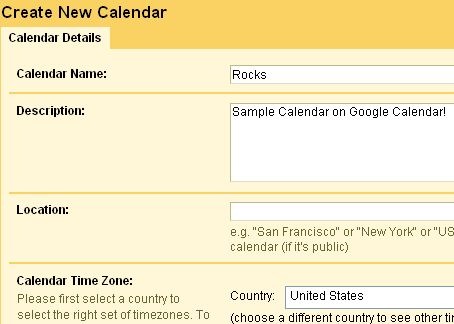
Create a new calendar on Google. Let’s assume that you just created a new calendar called “Rocks“.
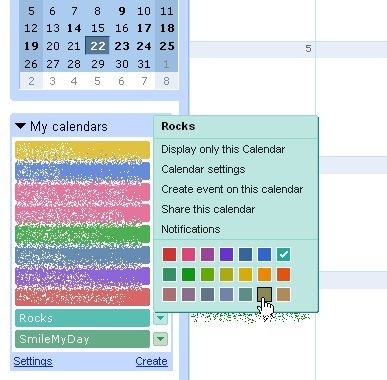
You can share and change the color of the Calendar. It will look like this.
You can add a test event on Google Calendar to test the synchronization later.
Step 3: Install GCALDaemon to sync your Google Calendar
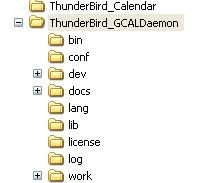
Install GCALDaemon on your computer. In my case, I install it on my Window XP. I always like to know what is installed on my computer. So I decided to download the Zip Archive version instead of Installer. You can simply unzip the files to the folder you preferred. In my case, I unzip the file under my Thunderbird folder so I can sync between computers as well. It will looks like this.
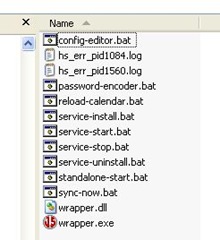
You will find few files under the Bin folder, which you will be using to run GCALDaemon as system service. So it will automatically sync your calendar every N minutes.
Step 4: Config GCALDaemon to store your offline Calendar files.
You can now run Service-install.bat to install GCALDaemon as system services. Or you can simply click on Sync-now.bat to sync when ever you want to. In my case, I do both. I create a short-cut on my desk. So I can sync the calendar at real time. Or it will just run itself every 5 minutes. Now we need to run config-editor.bat to setup the file-based sync with Google Calendar.
Double click Config-editor.bat to open the configuration Interface.
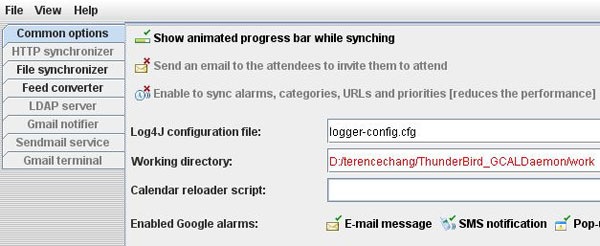
In my case, I will save the configuration file under Thunderbird_GCALDaemmone/work folder. You can adjust other setting based on your need.
Step 5: Link you Google Calendar account to your local Calendar files.
Now we need to setup file synchronizer. This is where other tutorial won’t tell you to do. All the tutorials on the Internet are telling you to use HTTP synchronizer to sync your Google Calendar. We will be using File based sync, so you can take Google Calendar with you. Click on File Synchronizer to open the interface.
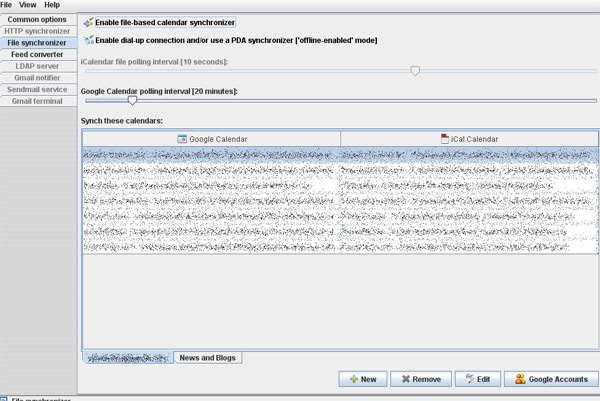
As you see, I already have few calendar created. You should just see an empty list of calendar in the interface. Click on the button on the right bottom corner – “Google Accounts” to open the account interface.
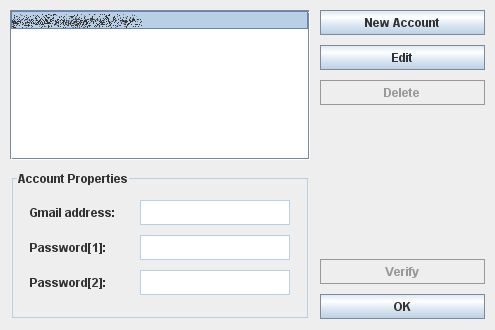
You can simply add your Google Calendar Account and press OK. You can add as many account as you wish.
Go back to the previous interface and press New button to create a new file-based calendar file. You can now see your account list in the Google Account Drop Down. Click on Refresh button to load your calendar list from Google Calendar. You should see “Rocks” in the list.
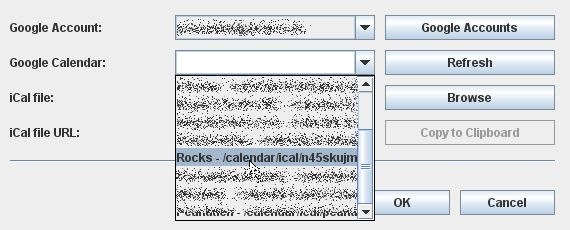
Choose the destination for your new iCal file. I choose somewhere on my disk under Thunderbird email folder, so I can sync them between computers. Press OK to complete. Now you see a new calendar listed under your account.
[UPDATE 2010-07-13] Where to find the iCal file on your computer?
I have been asked by many of my readers about where to find the iCal file on your computer. I apologize that I did not make it clear. This article was created in 2008. So here is the answer.
Create an empty text file at the destination folder on your computer and name the empty text file with ics extension. You then choice the file from the iCal file dropdown menu or browse to the file.
Remember to enable File-based calendar synchronizer (The button on top of the screen).
Remember to save the configuration by click Save under File menu.
Double click on the Sync-now.bat file, where you install the GCALDaemon to sync your Google Calendar the first time. It will automatically create the offline file, where you set your iCal file. You can close GCALDaemon now.
Step 6: Link Google Calendar with your offline Calendar file in Thunderbird + Lightning.
Now the final step is to add the offline file (iCal file) to thunderbird + Lightning. Open your Thunderbird and go to your calendar interface.
Under the File menu, choose Open -> Calendar File. We want to open the offline iCal file and make it part of our Calendar. So it will sync with Google Calendar whenever we are online.
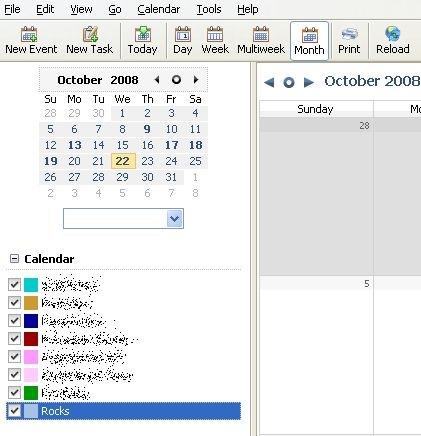
Now you see “Rocks” list as one of the Calendars. Unfortunately, there is no way to sort your Calendar by name in Lightning, but you can choose different color for your Calendars.
Now you can add new event sync the Calendar with Google Calendar. Unplug your network cable or shut down your wireless connection, you should be able to make changes and modify your event. Re-connect your computer to the Internet and sync again.
WALA! You can now take Google Calendar with you anywhere in the World.
Final thoughts. I can’t really speak for Mac and Linux user regarding to this solutions. However, I believe they are similar because the universal interface. It has been a great journey to use Google Calendar for day to day business operation and personal events.
Please let me know if it works for you on Mac or Linux. Thank you so much for reading this long post. I hope you enjoy it!


Hi, Terence:
Nice send up on Google Calendar. Very comprehensive article. I don’t use it, but there are loads of people who do.
Consider the article stumbled. Hope all is well.
Missy.
@Missy:
Thank you so much! I used that all the time and thought someone will be benefited by that.
Does it only work one way, or will this push the Lightning calendar (ics) to sync in google calendar too?
@Mike:
It works both way. The magic is from the GCALDaemon process running at background. I set it to sync every 15 minutes, but I execute the command to sync whenever I want.
Thank you for stopping by!
Great! – Just by chance I did last Friday exactly how you described and now found out that it obviously was well done.
Three problems remain:
1. I don’t like the DOS-box that pops up everytime the GCALDaemon sync runs.
2. The service doesn’t run even though I installed it and checked, whether it was installed and running.
3. Setting categories to lightning events works fine, and I understand that they cannot be synced with google, but after a sync they disappeared from the lightning event as well, or rather have been set to a categorie like “www.google.com/x/yxa/something” (I don’t excatly remember).
Any idea how to solve my problems?
Fabio.
@Fabio9:
Thank you for stopping by! I did few changes on my Google Calendar and tried the changes few times with the following conclusion.
Just curious. What OS are you running? I am running Windows XP Pro SP3.
1. The only time DOS box popup is when I manually execute the SYNC batch file from my deskstop shortcut. It shows a green progress bar to indicate the sync is in progress. I can however turn the progress bar off in the configuration. It did not sure the dos popup box when the service is running. The DOS box stay popup is due to the java command running behind the scene, which OS have no control.
2. Did you get any error message? I have no problem to set the service to run automatically. I do however need to restart the service every time I change the configuration.
3. You are 100% right. After syncing with Google calendar, few things has changed in the lightening. Category is changed to NONE or something like ‘http://schemas.google.com/g/event/2005#. The status is changed to confirmed. Personally, I don’t use the category in lightening, because it did not show on the calendar view anyway. You have to open the event to view the category or use Find Event to sort by category. I believe it’s either lightening or GCALDaemon’s bug, since Google don’t categorize event at the moment. There is option in the GCALDaemon’s configuration to turn off SYNCing category, URL, alert etc, but it still changes the category after syncing. It’s annoying.
Even there are few annoying things, I still like what thunderbird, lightening, GCALDaemon and Google Calendar brings to my life. I can take them with me whenever and wherever I go. I enjoyed the power of taking Google Calendar with me.
Ok, tell me if you have ran into this problem:
I set reminders in lightning for events. When the reminder pops up I acknowledge it and “dismiss” the reminder. But when the gcal service syncs next I get the reminder again, as if google calendar doesn’t know that I dismissed the reminder. I think google calendar re-sends its alarm back to lightning. I’ve even tried the “enable alarms sync” option in the gCal config editor. Any advice other than to not use reminders/alarms?
@Mike:
Thank you pointing that out.
I think that reminder BUG has nothing to do with Google. It’s either in Lightening. It happens to me too. No matter how many times I dismiss the alarm or change the setting, it always pop-up to alert me.
I can only remove the reminder to turn it off regardless if I sync with Google or not. I don’t even have alert settingon Google Calendar. So I think it’s the bug in the Lightening, but not 100%.
I will try lightening without SYNC by turning GCALDaemon service off for hours and see where the bug is located.
Thank you for reminding me. I thought I was the only one having that annoying issue.
@Mike, Terence:
You are not alone!
I have exactly the same problem with the reminders. Have you found a solution for it?
Frank
Thanks Terrance!
This post and your one on TB Profiles I’ll be referring to in a post I’m doing on migrating from Palm to Thunderbird/Lightning. Great stuff.
I’ll have to try this out. I initially just used Google as an import/export tool but its better than I expected and adds a couple of advantages to retain it. Being able to sync both ways means not only off-line but I can share the data set with a netbook more easily. May just use Google for the netbook as I rally don’t need the fully tricked-out Thunderbird there.
BTW – Calendar categories can be made visible. Set colors here:
Tools > Options > Lightning > Categories
However, as you say, using them messes up Google event linking, which is too bad. They should add a datalink field.
This is a very well written article. Thank you for sharing this with us. I live on a boat so I’m offline a lot but syncing when online is a real boon. Thanks!
Hi Terence,
Thanks for the great post. I’ve set it up on my MacBook and it works fine when I run the reload-calendar.sh script manually. But I was expecting it to update itself automatically every 10 minutes (I set the Google Calendar Polling Interval to 10 mins). Was my expectation wrong? Or is there a trick to getting it to update automatically? Do I need to initiate the GCALDaemon every time my computer boots or something?
Kind regards,
gobr.
@Gobr:
Glad that you get the Google Calendar syncing working on your MacBook. I can’t speak for Mac. On PC, you can run GCALDaemon as services. So it will run every n minutes you defined. I believe there is tools or auto-play type of features on Mac as well.
For you Ubuntu users out there some nice person has created a package that greatly simplifies the install. Check it out at:
http://blog.philippheckel.com/2008/09/30/gcaldaemon-deb-package-for-ubuntu-kubuntu
I thought I followed the directions as indicated, but things that are added to the lightening calendar (online or offline) aren’t being added to my gmail calendar. Not sure what I am doing wrong. The original way that I had done it — as explained on the other sites — does sync with the online calendar, but its a pain b/c my gcalendar events disappear when I am offline (and sometimes when I am online too!!). If I can make this work it would be ideal. Help!! What am I possibly doing wrong?
@Melanie:
I assume you are using Vista? Do you? I have no problem with XP to sync Google calendar. I can update my Calendar offline and sync to Google calendar when I am online.
However, I think it doesn’t work with Vista at all. When I am offline, the calendar on Lightening just disappear. The calendar will disappear even when I am online. I found that the GCALDaemon services was stop for no reason. I think some how Vista is prevent GCALDaemon service from running constantly.
If you are NOT running Vista, please check to make sure your GCALDaemon is always running.
Thank you so much for that great article !
I have a little trouble, though. I use a dual boot PC and I managed to have TB functionning on the same files whatever the OS i’m running (xp/ubuntu jaunty), TB’s profile folder being on a fat32 partitions seen/mounted by both OS.
I followed your howto step by step, it worked like a charm on XP, but on linux I can’t open the .ics files. I get no error alert box, they just don’t appear once selected under TB : any suggestion ?
kind regards,
Ned
answering to myself : it’s a lightning bug, solved using synaptics to install lightning instead of TB’s addons installer
@Ned:
Thank you for the information. I never tried dual boot PC with such configuration. Glad that you found the solutions.
Hmm.. I must be doing something wrong. Instead of one Ical file, I end up with hundreds of ICS files. Is it one for each event in the calendar? Where did I make a mistake?
Weird.. I have posted here twice before, but my questions have never passed through moderation. Maybe third time lucky?:)
I run into a strange problem – when I follow these instructions, my calendar folder is populated with hundreds of ics files – one for each event on my calendar. Do you have any idea why that happens and what I can change?
@Stein:
Sorry for the delay of approval of your comments. There are too many spam comments I have to clean up.
I have no idea what you are running into. It should not create ics files for each event. Make no sense.
What OS are you using?
There is got through
Sorry about all the spam! I am using Windows XP Home, and am running GCalDaemon and Thunderbird portable. I don’t think there are any other programs interfering with GCD, Thunderbird or my GCalendar.. Well.. On my work computer I have Thunderbird synced via the Thunderbird plugin for Google Documents. can that somehow change anything in Google Calendar? Any screenshots or anything I can send you to show possible errors? Thanks for taking the time to help out
@Stein:
I also have XP Home running. The only difference is that I don’t use Thunderbird portable. Or what version of GCalDaemon are you using? I recently found GCalDaemon is kind of buggy on Vista.
Whenever I stop GCalDaemon services, the data in ics file just get lost. It only happens on Vista.
I will send you an email offline and you can reply from there with your screen shots.
Thanks, Terrence, I’ll take contact. Unfortunately, I deleted the some hundreds of ics files that was downloaded. Later, I found out that I then obviously also deleted my Google Calendars. Two years of calendars just disappeared… That was a loss! Well, at least that leaves me free to experiment from scratch. Sigh.
Oops.. Sorry about the misspelling of your name..
Thanks Terrence, cool stuff, exactly what i was looking for and works great.
Though next trick would be to synchronize my default lightning calendar back to a specific calendar in google… Thoughts?
@Jesse:
I am not sure how to sync the default calendar. I would just create one Google Calendar and make that as a default.
Thank you for stopping by!
I’m running ubuntu intrepid. I’ve installed gcaldaemon, been able to get it to run both standalone and sync now, and it ‘syncs’ [says sync completed, no error messages], BUT then when I open the google.ics file in thunderbird/lightning, there is no data. When I run standalone, this is what returns:
andre@andre-laptop:/usr/local/sbin/GCALDaemon/bin$ ./standalone-start.shINFO | GCALDaemon V1.0 beta 16 starting…
INFO | RSS/ATOM feed converter enabled.
INFO | Local time zone is Central Standard Time.
INFO | HTTP server disabled.
INFO | Start listening file /usr/local/sbin/GCALDaemon/google.ics…
INFO | File listener started successfully.
INFO | Offline file synchronization enabled.
INFO | LDAP server disabled.
INFO | Gmail notifier disabled.
INFO | Sendmail service disabled.
INFO | Mail terminal disabled.
Any idea what I’ve done wrong?
@Andre:
Sorry to hear you troubles. The info doesn’t say a lot about your problem. I doubt that I will be able to solve your problem on ubuntu. Let’s see if someone on this comments list are able to give you hints. If you find your answers, please share that here. Thanks!
so, I uninstalled and reinstalled and now its working fine.
Hi Terence,
nice explanation.
I found out a different problem.
I add a new entrance in my TB Lightning with the reminder option and sync it to gmail.
If I check now online in the gmail Calendar, the reminder is set to “Email”.
Gmail has to options “Email” and “Popup”.
The problem is, that my Iphone (which I sync with Gmail Calendar) can only handle the option “Popup”.
Is there a possibility to configure that after the sync between TB and Gmail, the reminder is set to “Popup” and not to “Email”?
Has anybody an idea?
@Klaus:
Thank you for stopping by. Unfortunately, I haven’t got my iphone 3GS to play with. I think the default email reminder is done on the Google Calendar end. You will have to go into G Calendar to add or change. I don’t know if there is any way to make Google Calendar to use popup as default. I also don’t think Thunderbird ask Google Calender to use popup, even it was set to use alarm in Thunderbird. The interesting thing is that the email check box in Thunderbird is disabled when I add new reminder.
Anyway, I am interested in knowing that too, because my iPhone is on it’s way/
Looks great, but I’m stuck at step 5 where you say:
“Choose the destination for your new iCal file.”
I’m presuming I have to click on the browse button and go to the location I want to save the calendar, but that only gives me the option to open a file, not to create one. Is there a gap in the instructions where it says to create the ical file?
Also, I’ve been using Thunderbird/Lightning for a few yrs so already have a couple of calendars that I’d like to make available in Google, ideally with each existing calendar being a separate Google calendar. How do I do that?
Hi Terence Chang,
It is a very nice article and i am able to sync with my TB & google calendar. Should I run the sync.bat file every time i want to sync or how to set it automatic for every n secs or minutes. I already installed the service and it is running automatic mode.
Thanks in advance and its a great article.
Ram
Hey Terence! You’ve got a good thing going on here, and I thought I’d join the party.
So when I create an event in Google Calendar it appears in Thunderbird 1 hour earlier than it should. I’m using Ubuntu, but I don’t think that makes a difference.
Any clues?
Thanks!
Thank you so much for this. I struggled to get teh HTML based synch to work, partly because the tutorials for GCaldaemon as so terrible, and I’m pretty techie, ans can usually work things out as I go along. So this makes life so much easier, and worked first time. Next step is to sync with my iPhone as well!
Thanks again!
To all my readers and commenter, I apology that I am out of the loop about this blog post.
I update the blog post to answer some of your questions. In step #5, you simply create an empty text file and name it ics extension at your destination folder and choice the file from the browse button.
I haven’t used lightening with Thunderbird for a long time, since I got my iPhone.
Anyway, thank you all for stopping by!
Thank you for the quick reply!
I followed your added instructions, but no data is written to the blank .ics file when I run sync-now.bat. Do I need to follow any instructions from the GCalDaemon tutorial, or does your tutorial cover everything? I am using Windows 7, so maybe that won’t work? Any other tips? I really hope I can get this working. Thanks!
@Dave:
I use Vista, which I have problem starting GCalDaemon as service. It was working perfectly until I update the Java JVM.
However I have no problem to use standalone and sync now features. I created an test.ics file at the destination folder and a test calendar on my Gmail account. I go through exactly same procedures in my post and I can sync both way.
Make sure you did the followings.
1. Save the changes in the config Editor
2. The ics file is writable (you shouldn’t need to do this anyway)
3. In the config editor under common options, you can turn on the animated process bar.
4. Run the sync_now.bat, it should popup the window command prompt. In about 2-3 seconds, you should see the green progress bar running.
5. If you don’t have any event created on Thunderbird and Google Calendar, the file will stay blank. Try to create different event on both side, and run Sync_now again. You should see your file changed.
I hope it works for you. Let me know if you eventually get that working. Thanks!
Success! I have all seven of my Google calendars successfully syncing with Thunderbird (when I run sync-now.bat. One more question, however:
How do I activate the automatic syncing? I can set the sync interval (like 15 min) in config-editor.bat, but what actually starts the process? What is the process called in Task Manager? Will it always run, or will I have to start it each time I turn on my computer?
Thanks!
Good to hear that you got your issues worked out.
Under the bin folder, you can run service-install.bat to run GCALDaemon as service. It won’t automatically start the service, so you will have to manually start the service yourself. Make sure you right click on the bat file and choose “Run as administrator”, since you are using Windows 7 with more security control.
On my Vista laptop, I can’t no longer to run GCALDaemon as services after upgrading my Java stuff. So I have to run the stand alone one everytime I start up my computer.